








People
Contents
People in PostHog represent the users behind your events. You can view them in the People tab.
People have person profiles with properties. This enables you to do things like:
- Filter on person properties
- Create cohorts
- Use person properties for targeting feature flags, A/B tests, and surveys.
- Track initial UTM values and referrers across anonymous and identified users.
- Query the
personstable using SQL insights
How to create person profiles
When you capture your first identified event for a user, it creates a person profile for them. Then, any future events captured are attributed to this profile. You can also set properties for the person.
The persons list
The People tab displays a list of all people in your project. By default, the list includes the following columns:
- Person - display name for the person
- ID - the person's distinct ID
- Created at - when the person profile was first created
- Last seen - when the person was last active, rounded to the nearest hour
- Delete - option to delete the person
The Last seen column updates hourly, so it may not reflect the exact timestamp of a person's latest event. If a person was active within the last hour, the column displays "last hour" instead of a specific time.
You can sort the list by any column, including last seen, to find recently active or inactive users. To customize which columns are visible, click the Configure columns button above the table.
Viewing person profiles
Clicking on a person in the People tab opens their profile and shows all their properties.
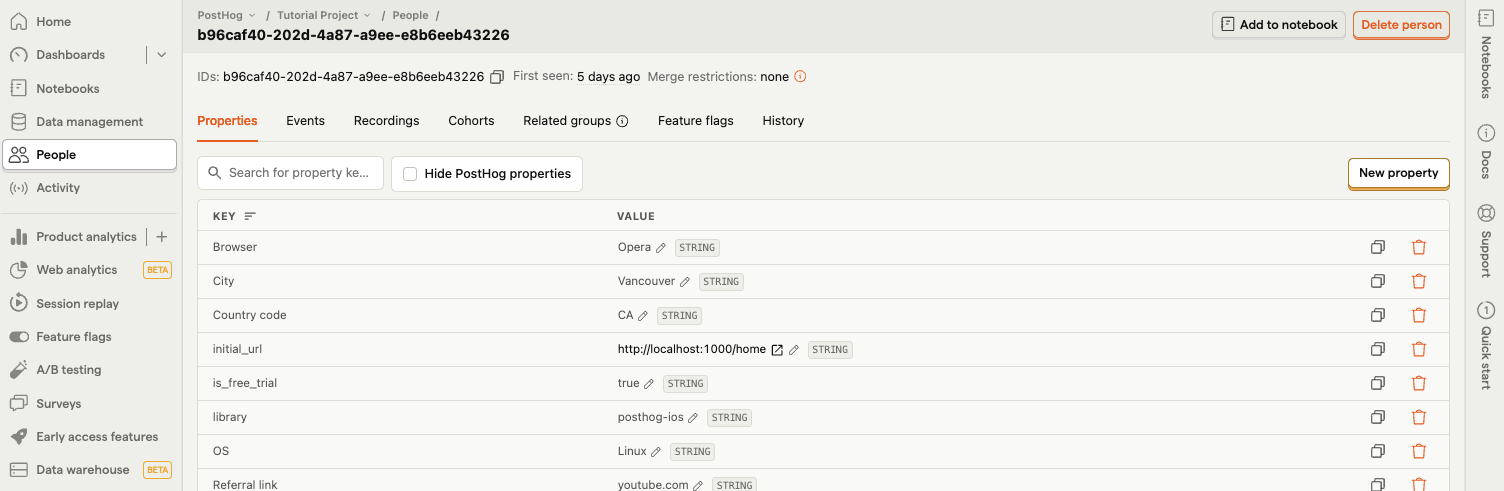
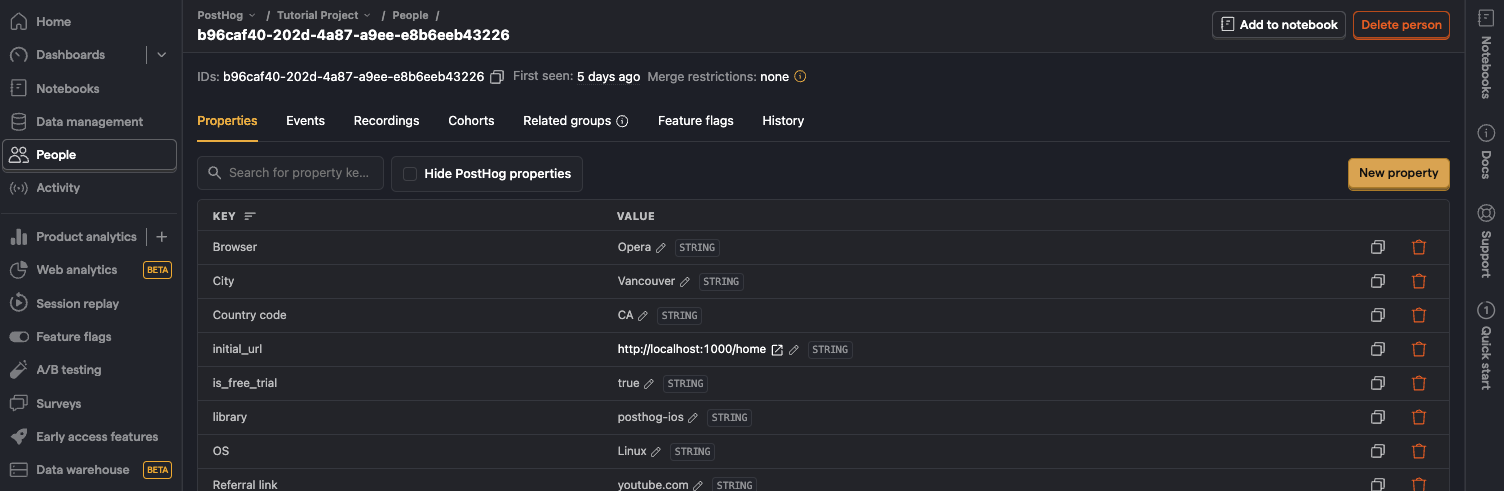
Events shows all the events a person has triggered, which you can search and filter to find specific events.
Recordings shows all of the session replays a person has generated. Note this is subject to the retention policy of your plan, so people who haven't been active recently may have none.
Cohorts shows all the cohorts a person belongs to.
Related groups: shows groups (e.g. organizations, projects, and instances) a person belongs to.
Feature flags: shows all feature flags that are enabled for the person.
History: shows any manual changes that have been made to the person's profile.
Deleting person data
In the PostHog app
- Search for the person via their unique ID. For example, their email.
- Click on the person's ID
- Click Delete person to remove them and all their associated data. You will be prompted to confirm this action.
User deletion requests are not immediate, but processed asynchronously. We recommend that you avoid reusing a deleted distinct_id value for a new user, as it may lead to unexpected results while the deletion is being processed. Once the deletion process is fully processed, PostHog does not retain any data associated with the deleted distinct_id.
If you must reuse the distinct_id, you can do so using the Reset deleted person tool, available from the dropdown at the top-right of the persons page. This tool enables you to reset a deleted distinct_id so that future events associated with it create a new person profile.
If you instead want to split a person with multiple IDs (e.g. to isolate bad data tied to a specific distinct_id), use the Split IDs button on their person profile.
Via the API
You can also delete persons data via the API. See the Data Deletion docs for more information.